Secure your
eCitizen account
eCitizen gives you access to over 22,000 government services and important personal information.
Set up verification in the eCitizen app. You'll confirm it's you with a quick face or fingerprints scan whenever you sign in or access a sensitive service.
Get started: Download the eCitizen app and set up secure sign-in.



How verification protects you
Your eCitizen account gives access to your applications and government documents. With secure sign-in activated, every new sign-in needs a quick face or fingerprints check on your phone. A stolen password or OTP alone won't get anyone in.
Benefits of secure sign-in
-

A stolen password isn't enough
Anyone who tries to sign in as you also needs your face or fingerprint on your registered phone. Unlike an OTP it can't be taken over with a SIM swap.
-

You'll know if someone tries
A verification request you didn't start is an early warning that someone has your password. If you receive one, deny the request and change your password.
-

Sensitive services need your OK
Even when you're signed in, some services or transactions may need a quick scan. No one can make them from a computer you forgot to sign out of.
-
Get back in if you're locked out
Forgot your password? Confirm it's you with a face or fingerprint scan
Set up secure sign-in
-
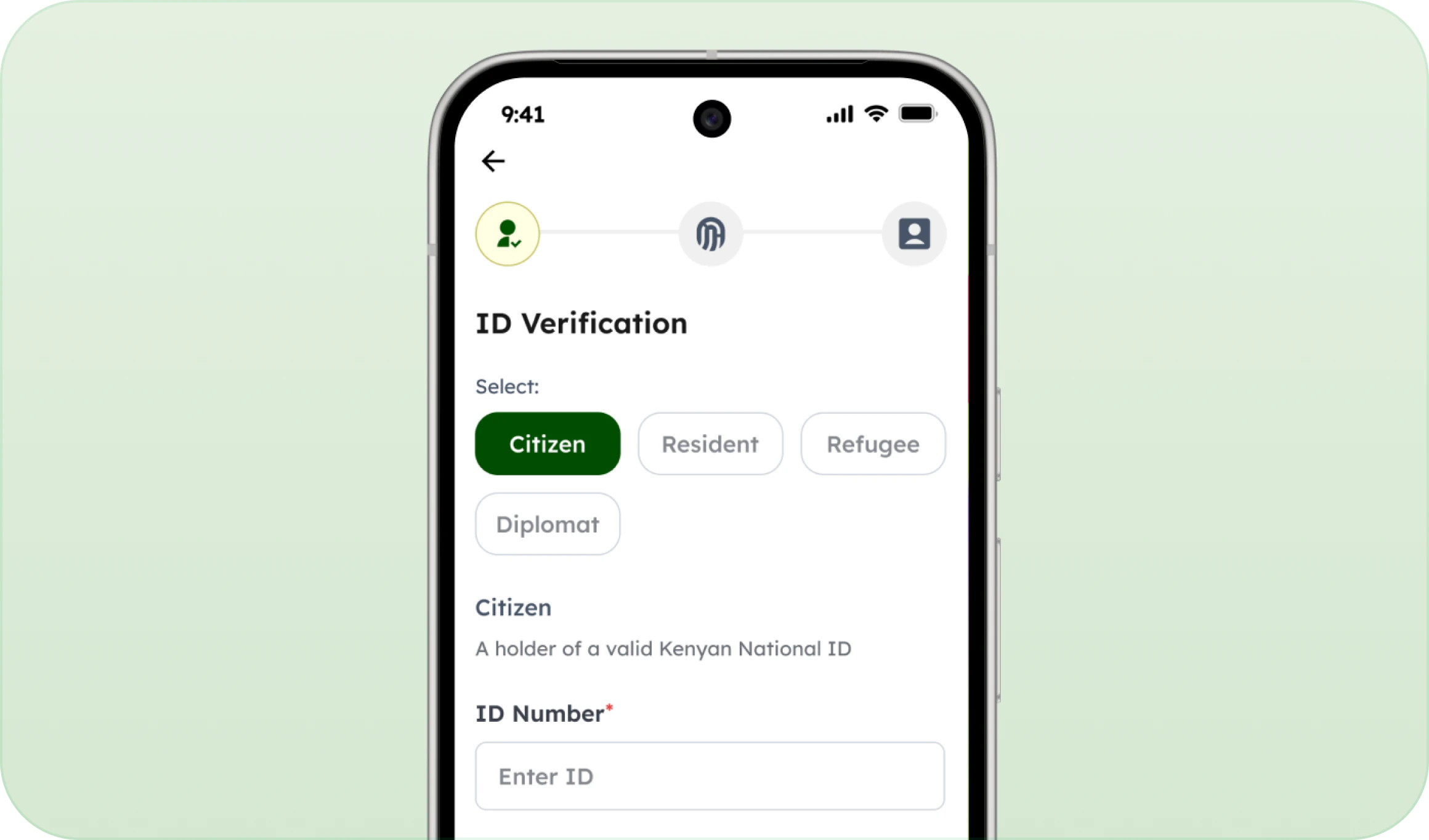
Download the eCitizen app
Install the eCitizen app from the Google Play Store or Apple App Store, then provide the required details.
-
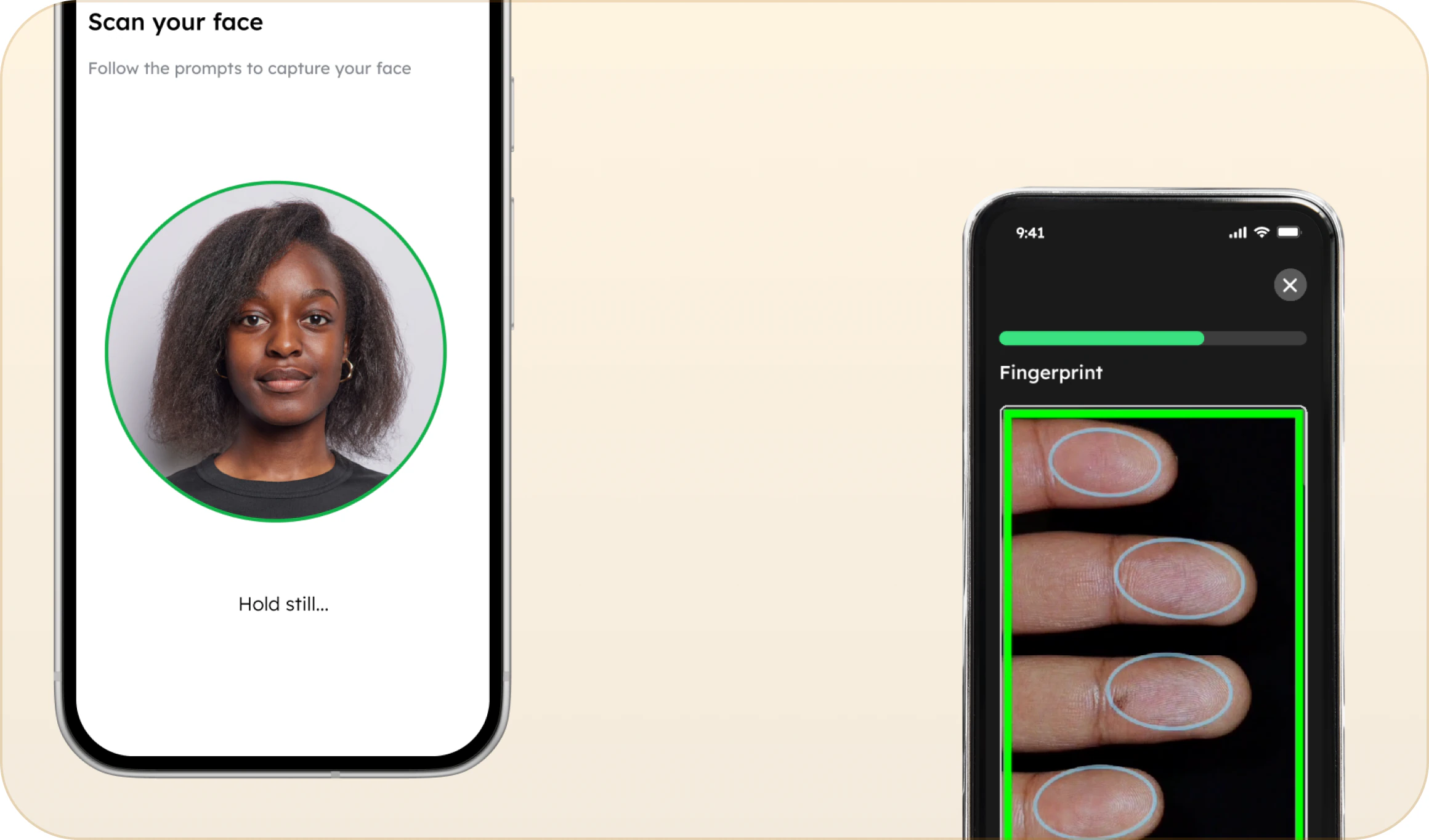
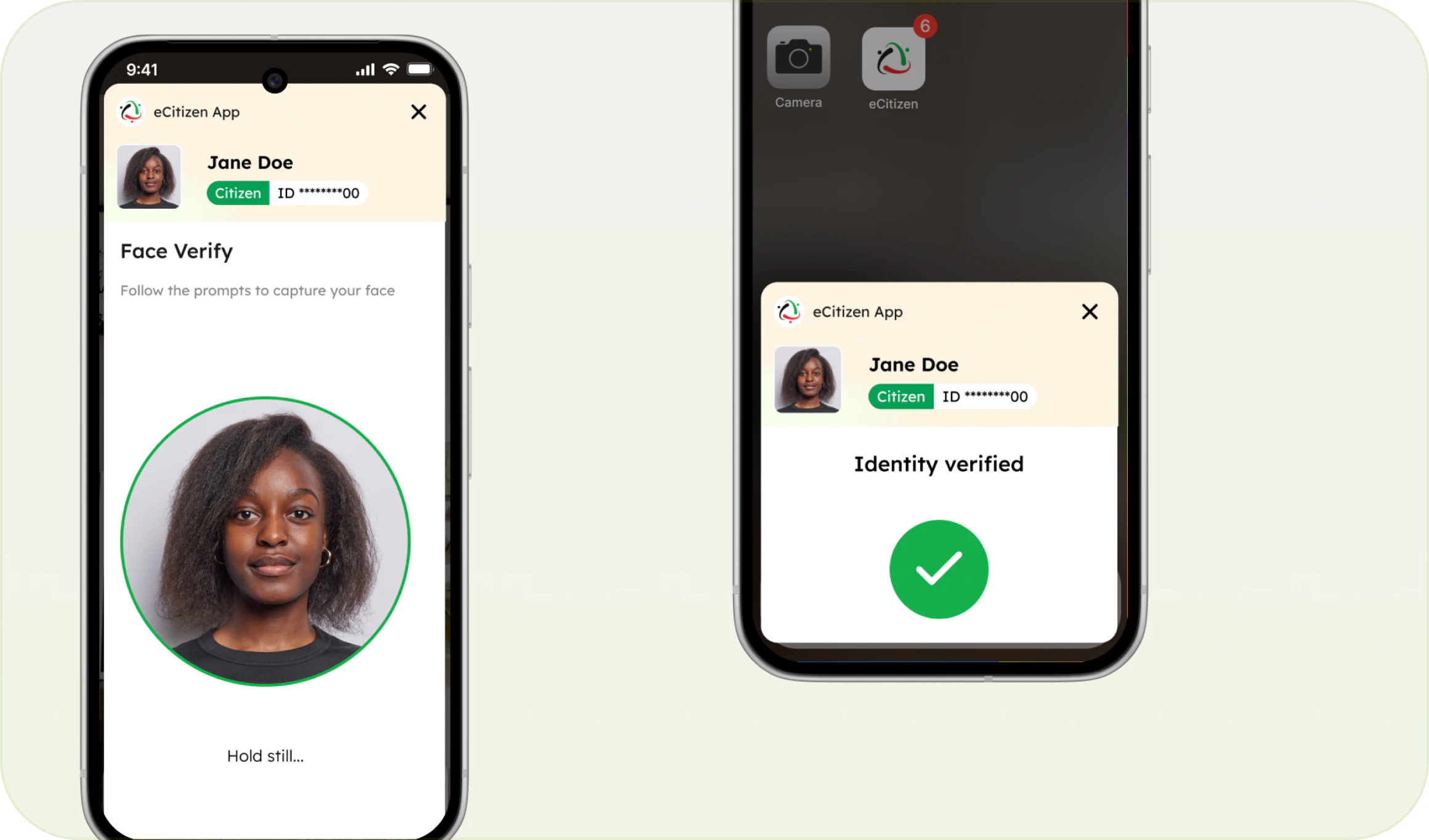
Scan your face and fingerprints
The app guides you through both scans with your phone's camera. Take off glasses or a hat, and hold still.
-
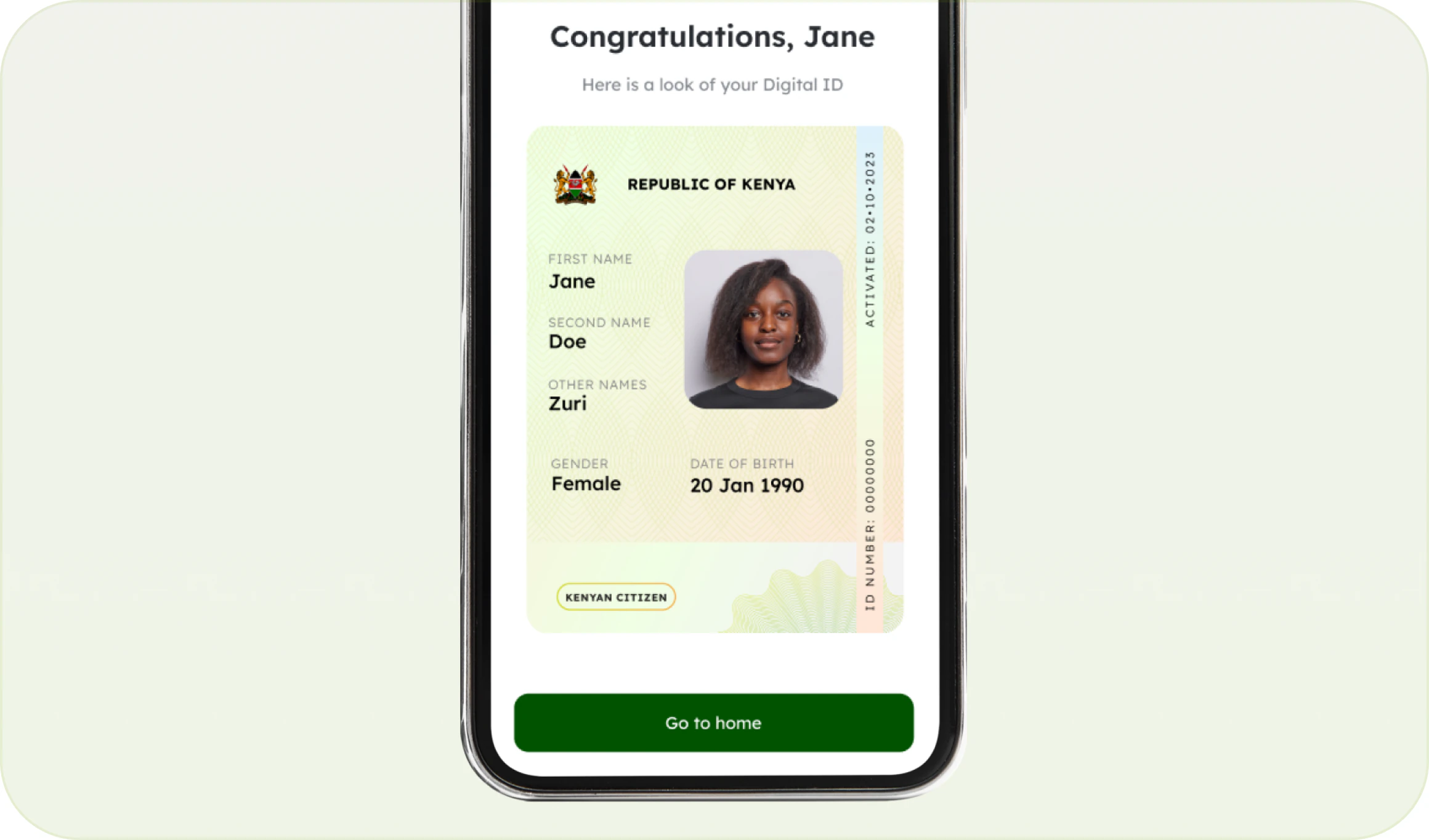
You're set up
This is now your registered phone, and your Digital ID is active. Next time you sign in, you'll get a verification request here.
How to sign in securely
Option 1: Approve the sign-in on your phone
-
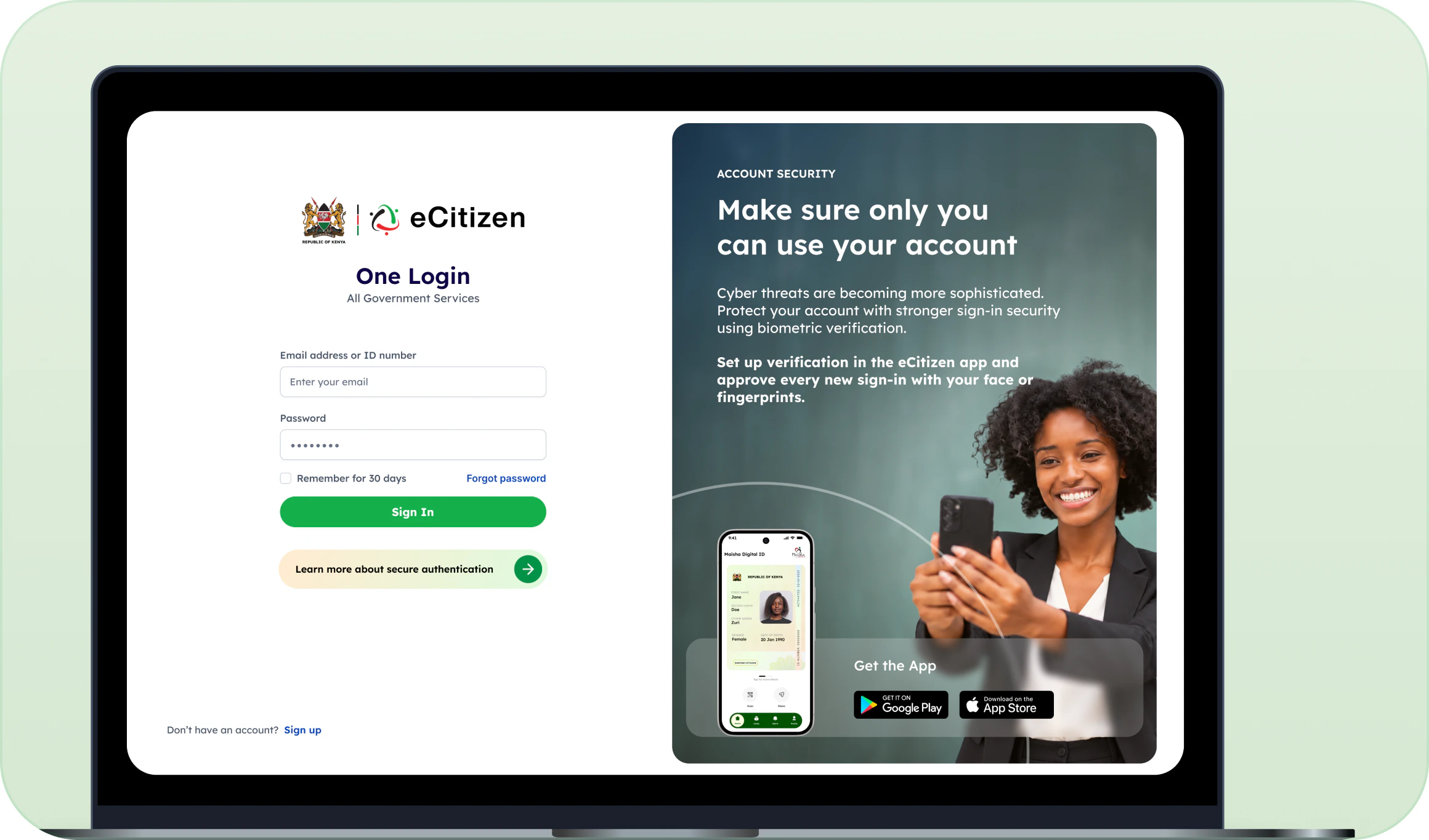
Enter your eCitizen login details
On the eCitizen website, enter your email address, ID number or username and your password.
-
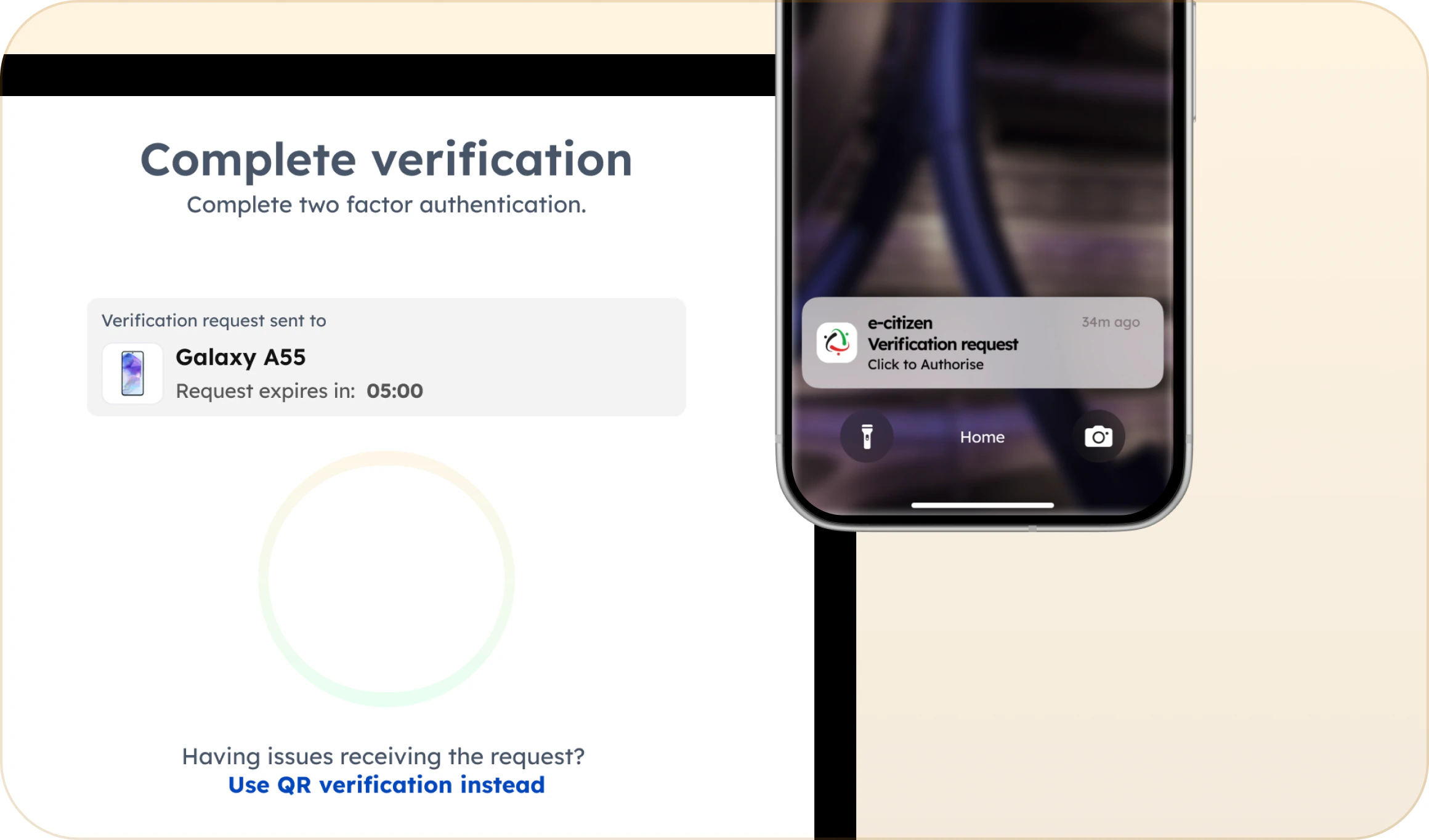
Check your phone
We’ll send a sign-in request to your registered device. Open the eCitizen app and review the request.

-
Confirm your identity
Use biometric verification when prompted. Once confirmed, your browser will securely sign you in.
Stay Safe
Rules
- Only approve what you're doing right now. If a request doesn't match what you're doing, always reject.
- We'll NEVER call you about a request. eCitizen will never call, SMS or WhatsApp you to ask you to approve a request or scan a QR code. Anyone who does is a scammer, so hang up.
- Check you're on the real site. Only enter your password on a web address ending in ecitizen.go.ke. Only scan sign-in QR codes with the eCitizen app.
- Keep your phone and password to yourself. Never share your password or any code eCitizen sends you.
Getting help from someone?
Many people use eCitizen at a cyber café, a Huduma Centre or with family. If someone is helping you:
- Type your password yourself if you can.
- Approve requests only while you're with them, and check each one is for what you asked for.
- Don't tick Remember for 30 days, and make sure you're signed out before you leave.
Lost your phone?
Remove it from your account straight away at Account Management › Devices, or call +254207903260.
Saw a request you didn't start?
Change your password, then report it: call +254207903260 or email support@ecitizen.go.ke.
What happens to your face and fingerprint scans
When you scan your face or fingerprints, it is compared with the records the National Registration Bureau already holds from your ID registration. The scan itself isn't kept, and it's only used to confirm it's you.
Verification meets the requirements of Kenya's Data Protection Act, 2019. Read our privacy notice

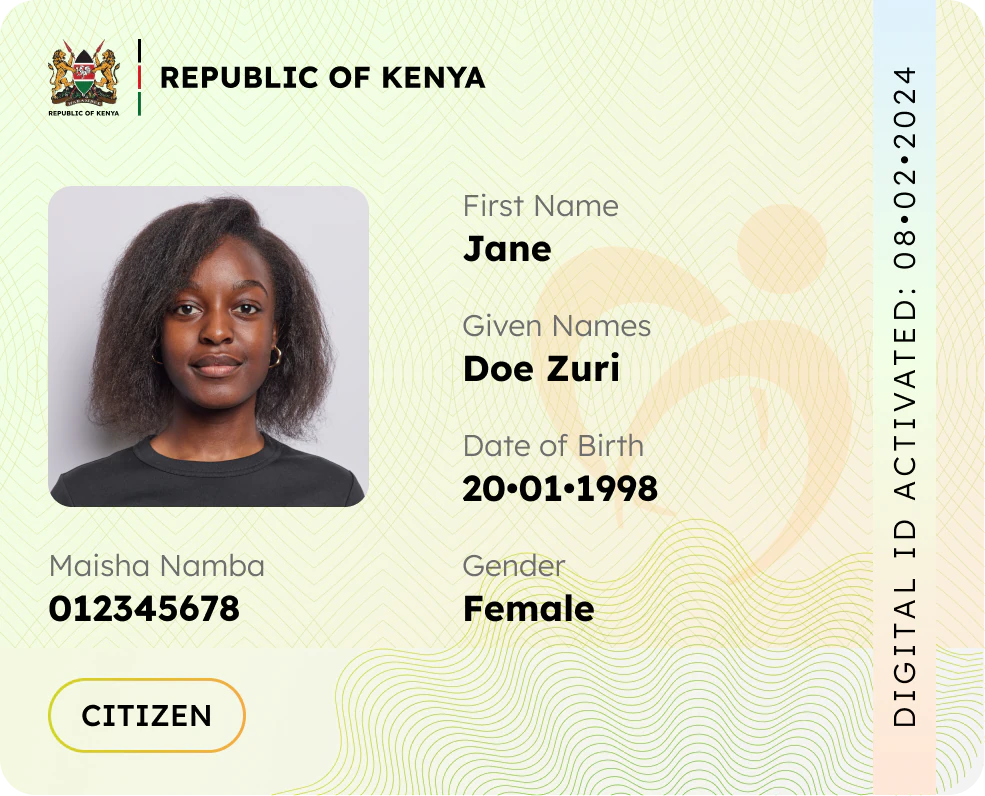
Your Maisha Digital ID
Setting up verification also activates your Maisha Digital ID. It's your ID on your phone, ready to use across more than 22,000 government services.